ClipForge
A downloadable tool for Windows
ClipForge for Windows
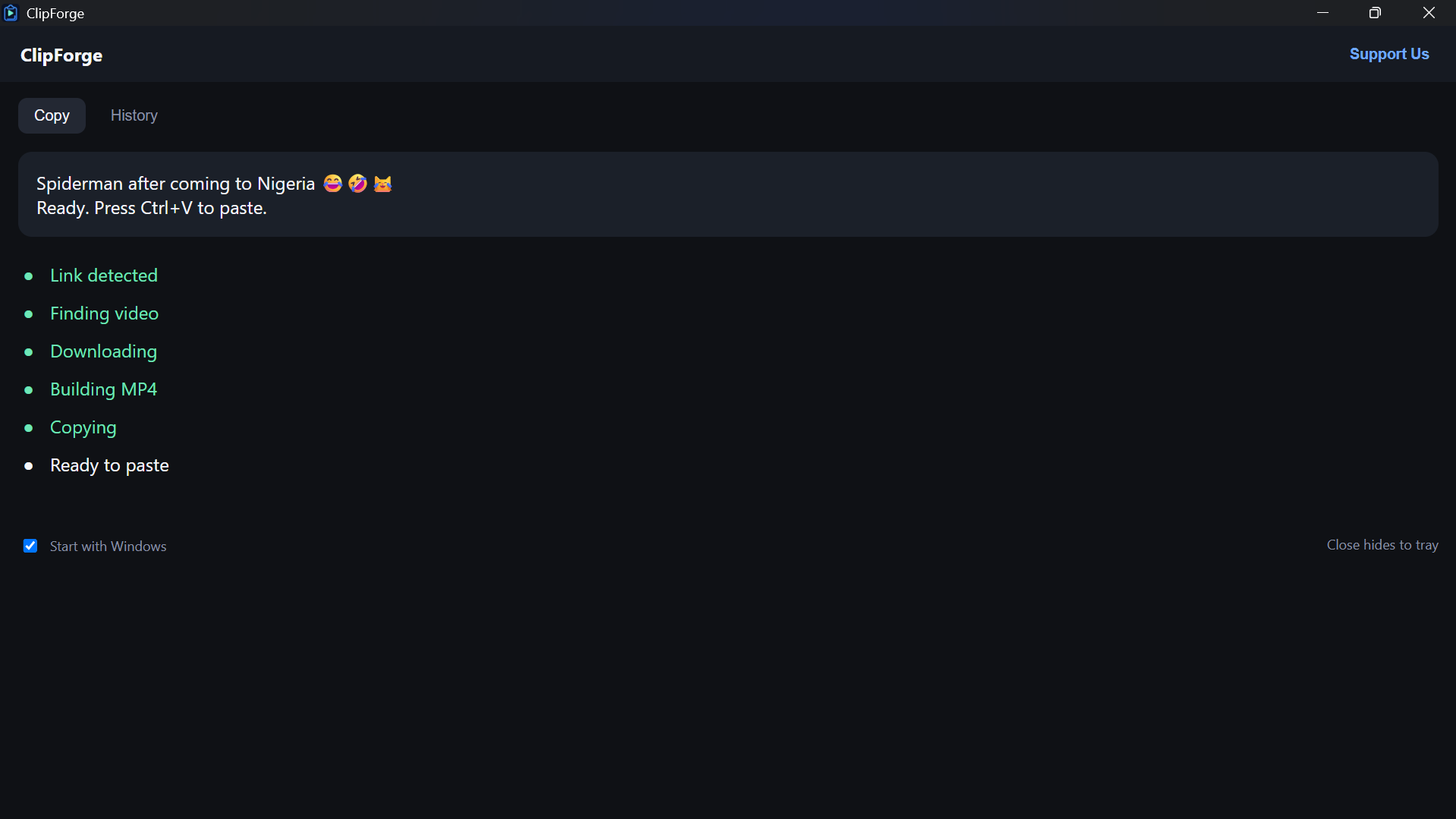
Copy a video link. ClipForge prepares the real video. Press Ctrl+V and paste it.
You do not open a website, pick a format, or hunt for a downloads folder. ClipForge watches the clipboard. When it sees a supported video URL, it builds an MP4 and puts that file on the clipboard so you can paste it into a chat, a folder, or another app.
How it works
1. Keep ClipForge running (it can sit in the tray).
2. Copy a video URL.
3. Wait until it says the video is ready.
4. Press Ctrl+V.
What you get
• Automatic link detection
• Progress in the app window
• History of the last 5 videos
• Paste as a real file, named after the video
• Optional Start with Windows
What it is not
ClipForge is not a video editor. It does not trim, crop, or add effects. It does not replace your browser.
Support
It works most reliably with public YouTube videos and Shorts. Other sites may work, or they may block the request. Private, age-gated, or login-only videos will not work.
Requirements
Windows 10 or Windows 11 (64-bit).
No extra programs to install if you use the Setup file.
This is a small independent tool. Windows may show an “Unknown publisher” warning because the app is not code-signed yet. That is expected.
Download
Install instructions
ClipForge is a Windows app. It is not a browser game.
1. Download ClipForge-Setup-1.0.0.exe.
2. Double-click the Setup file.
3. If Windows Smart Screen appears (“Windows protected your PC”), click More info, then Run anyway. Only do this if you downloaded it from this itch.io page.
4. Click through the installer. You do not need administrator permission.
5. Open ClipForge from the Start Menu or the desktop shortcut.
6. Leave the window open, or close it to hide it in the tray.
7. Copy a public video URL (YouTube is the most reliable test).
8. When the app says the video is ready, press Ctrl+V to paste the file.
You do not need Python, FFmpeg, or any other program if you installed from this Setup file.
To uninstall: Windows Settings → Apps → ClipForge → Uninstall.
If the window is blank or shows an error, close ClipForge, uninstall it, and install this same Setup file again.

Leave a comment
Log in with itch.io to leave a comment.